Download iSubtitle – Free Subtitles Tool for iTunes, macOS & iOS
Overview – Why iSubtitle Stands Out in the Subtitle Market
iSubtitle, developed by Bitfield AB, is a purpose‑built subtitle editor that focuses on the Apple ecosystem. Whether you manage a personal iTunes library, sync movies to an iPhone, or curate a home‑theater collection, iSubtitle lets you embed subtitle tracks, chapter markers, and rich metadata directly into your video files. The software works in real‑time, creating resolution‑independent subtitle streams that are displayed clearly on any Apple device, from macOS desktops to iPad‑sized screens.
This means you no longer have to juggle external subtitle files or rely on third‑party players that may not honour iTunes‑style tagging. iSubtitle automates the tedious aspects of subtitle creation – it imports artwork, synchronises timing, and exports a clean, FFmpeg‑encoded file that preserves the original video quality while adding the textual layer you need. The result is a seamless viewing experience where the text appears exactly when it should, making dialogue comprehension easy even on low‑quality audio tracks or poorly recorded scenes. For film enthusiasts, series binge‑watchers, and anyone who wants an elegant, “set‑and‑forget” subtitle solution for Apple devices, iSubtitle delivers a blend of simplicity and power that is rare in the niche of video‑metadata tools.
Key Features That Make iSubtitle a Must‑Have Tool
- Native iTunes Integration: Automatically tags videos with iTunes‑compatible metadata, artwork, and chapter markers.
- Multiple Subtitle Formats: Supports ASS/SSA, SRT, STL, and VTT, allowing you to import or export the format that fits your workflow.
- Resolution‑Independent Tracks: Subtitles are rendered independently of video resolution, ensuring crisp readability on 4K, HD, or SD screens.
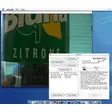
- Real‑Time Preview: Watch the video while editing subtitles, so timing adjustments are instantly visible.
- Batch Processing: Add subtitles, metadata, and artwork to dozens of movies at once, perfect for large libraries.
- Time‑Offset Stepper: Fine‑tune subtitle synchronization down to milliseconds without re‑encoding the whole video.
- Multi‑Language Support: Embed several language tracks in a single file and switch between them on Apple devices.
- FFmpeg‑Powered Export: Leverages the industry‑standard encoder for fast, pass‑through compatible exports that retain original video quality.
- Drag‑and‑Drop Interface: Simple UI lets you drop a video file, select subtitle options, and export with a single click.
- Automatic Artwork Import: Pulls cover art from iTunes or external sources to keep your library visually consistent.
Installation, Compatibility & Step‑by‑Step Usage Guide
Getting iSubtitle Up and Running
iSubtitle is distributed as a macOS‑native .dmg package. Download the installer from the official Bitfield website, then open the .dmg and drag the iSubtitle icon into your Applications folder. The installer performs a quick checksum verification to ensure the file is secure and untampered. Once installed, launch iSubtitle from the Launchpad or Spotlight search.
System Requirements (Operating System)
macOS 10.13 High Sierra or later (including macOS Ventura, Sonoma, and future releases). The app runs natively on Apple Silicon (M1, M2) and Intel Macs, automatically selecting the appropriate binary for optimal performance.
Adding Subtitles to a Video – A Practical Walkthrough
- Import the Video: Drag the movie file from Finder into the iSubtitle window. The software instantly reads existing metadata and displays a preview.
- Choose a Subtitle Track: Click “Add Subtitle,” then select the desired format (SRT, ASS, etc.). You can either create a new track from scratch or import an existing file.
- Synchronise Timing: Use the time‑offset stepper or the built‑in waveform editor to align subtitles with speech. Real‑time preview lets you verify each line.
- Insert Chapter Markers & Artwork: Click “Add Chapter” to set start points for each scene. Drag artwork into the designated area or let iSubtitle pull the cover from iTunes.
- Export the File: Choose “Export for iTunes.” iSubtitle uses FFmpeg to mux the subtitle track, preserving the original video codec. The exported file appears in your chosen folder, ready to be added to iTunes or synced to iPhone/iPad.
Batch Processing Tips
For large libraries, select multiple videos in Finder, drag them all into iSubtitle, and apply a common subtitle file or metadata template. The batch mode processes each file sequentially, showing a progress bar and estimated completion time. This feature dramatically reduces the hours spent on manual tagging.
Pros & Cons, Frequently Asked Questions, and Final Verdict
Pros
- Deep integration with iTunes and Apple devices ensures flawless playback.
- Supports a wide range of subtitle formats, including advanced ASS/SSA styling.
- Batch processing saves time for large media collections.
- Resolution‑independent subtitles stay crisp on any screen size.
- FFmpeg‑based export retains original video quality with minimal file growth.
Cons
- Only available for macOS; Windows users must rely on virtualization or alternative tools.
- Advanced styling (e.g., complex ASS effects) may require manual tweaking.
- Pricing is a one‑time purchase; no free tier beyond a trial period.
FAQ – Quick Answers to Common Queries
Can iSubtitle add subtitles to videos already in iTunes?
Yes. iSubtitle reads the iTunes library, injects the new subtitle track, and re‑exports the file so it appears as a native iTunes video with embedded subtitles.
Is the exported video compatible with Android devices?
The exported file uses standard MP4 containers, so it will play on Android devices that support external subtitle tracks. However, iSubtitle’s automatic chapter and artwork tagging is specific to Apple’s ecosystem.
What subtitle formats can iSubtitle import?
iSubtitle can import ASS/SSA, SRT, STL, and VTT files. It also allows you to create new subtitles directly within the app.
Does iSubtitle support automatic language detection?
No automatic language detection is built‑in, but you can add multiple language tracks manually and switch between them on supported Apple devices.
How does iSubtitle handle large batch exports without slowing down my Mac?
iSubtitle leverages FFmpeg’s multi‑threaded encoding, which efficiently uses CPU cores. Batch jobs run in the background, allowing you to continue using other apps while processing completes.
Conclusion – Should You Download iSubtitle?
If you own a macOS device and rely on iTunes or the Apple TV app for media consumption, iSubtitle is a focused, reliable solution that eliminates the hassle of juggling external subtitle files. Its seamless integration, robust format support, and batch‑processing capabilities make it a time‑saving investment for anyone with a sizable video library. While Windows users will need to look elsewhere, the price point reflects a one‑time purchase with ongoing updates, and the return on productivity is evident after the first few movies. Download iSubtitle today to give your iTunes videos professional‑grade subtitles, chapter markers, and metadata—all without compromising video quality.